Mini Android Projector Setup: 1080P, WiFi & Auto Focus
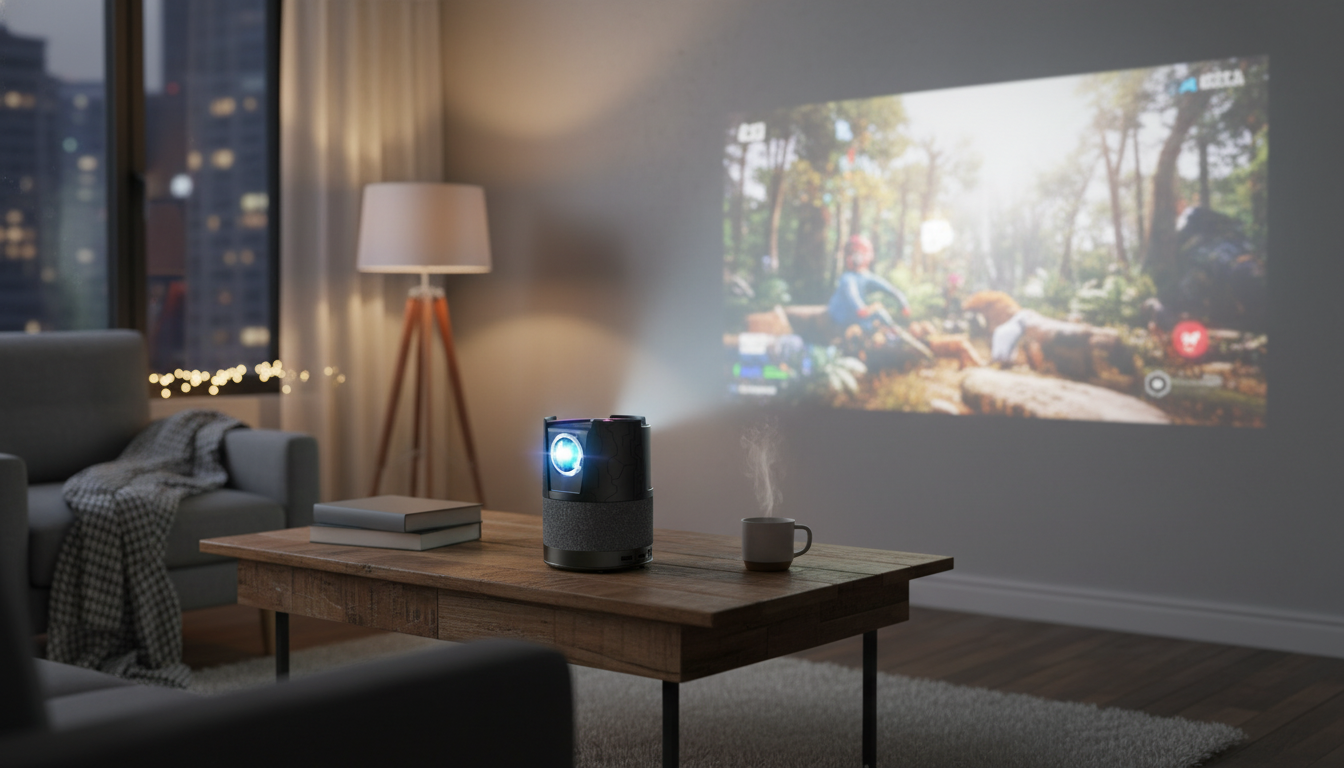
4K Mini Portable Projector with Android, WiFi, Auto Focus & Full HD 1080P: What to Know Before You Set Up
A compact projector can turn a blank wall into a big-screen setup for movie nights, casual gaming, travel, or quick presentations. The difference between “fun and easy” and “fussy and frustrating” usually comes down to a few everyday details: how sharp the image stays after you move it, how well it streams without extra hardware, and how forgiving it is when the room layout isn’t perfect. Below is a practical guide to what matters most—plus quick setup tips to help this Android-enabled mini projector fit your space and how you actually plan to use it.
What this mini projector is designed to do
This style of mini projector focuses on convenience: quick placement, simple streaming, and a picture that stays crisp without constant manual adjustments. It’s a strong match for:
- Portable big-screen viewing in bedrooms, living rooms, dorms, and outdoor setups where a TV feels too bulky or permanent.
- Built-in Android playback for streaming apps without needing a separate stick (app availability can vary by region and service requirements).
- WiFi connectivity for wireless streaming or casting (your phone/tablet must support compatible mirroring/casting protocols).
- Auto focus convenience to reduce the “move it, refocus it, repeat” routine when switching rooms or changing throw distance.
- Full HD 1080P viewing for sharper subtitles, clearer UI text, and better detail than typical entry-level 720p units.
Key features that affect everyday picture quality
Resolution and scaling (1080P vs. “4K support”)
Many compact projectors accept higher-resolution signals while displaying at a lower native resolution. Full HD 1080P is a sweet spot for most living spaces: menus look cleaner, subtitles stay readable, and fine details (like hair, grass, or on-screen text) are less smeared. If you frequently play 4K content, check whether the unit is describing 4K decoding/support (input/playback compatibility) versus a truly native 4K imaging chip.
Focus behavior: auto focus that keeps up
Auto focus is one of the most noticeable quality-of-life upgrades. If the projector gets bumped, moved to a different shelf, or taken on a trip, auto focus can snap the image back to clarity faster than manual tweaking. In tricky setups—angled placement or textured walls—having a manual focus override (if offered) can help dial in edge sharpness.
Keystone and alignment
Brightness in real rooms
Fan noise and heat management
Android + WiFi: what to expect from smart playback and casting
Streaming apps: convenient, but not always identical to a TV platform
Android-based projectors can run many streaming apps directly, which is ideal for quick setups. However, some premium services require certified platforms for HD/4K playback or may limit functionality on certain devices. Keeping an HDMI streaming stick as a backup can solve most compatibility surprises. For background on Android/TV app behavior and updates, the Android TV Help Center is a useful reference point.
WiFi performance: router placement matters
Buffering and dropouts are usually more about signal strength than the projector itself. If you can, place the projector within a strong WiFi zone and consider using the less congested band if your network supports it. The Wi‑Fi Alliance’s overview of certification and standards can help explain why some networks behave better than others in crowded areas: Wi‑Fi CERTIFIED.
Casting and mirroring: device support is the deciding factor
Screen mirroring depends on the protocols supported by both the projector and your phone/tablet. Keeping your mobile OS updated often improves pairing stability. If wireless casting is finicky, a wired HDMI connection from a laptop—or an HDMI streamer—tends to be the most consistent workaround. If you’re connecting consoles or modern media devices, it’s also worth understanding what HDMI versions do and don’t guarantee; the HDMI specification overview provides helpful context.
Offline playback for travel
Placement tips for a sharper, larger image
At-a-glance checklist: setup, connections, and use cases
| Scenario | Recommended setup | Why it helps |
|---|---|---|
| Bedroom movie night | Dim lights, centered placement, minimal keystone | Improves contrast and preserves sharpness |
| Living room with some light | Curtains, brighter mode if available, consider a screen | Reduces washout from ambient light |
| Travel / hotel | Auto focus on, compact stand/tripod, offline files as backup | Faster setup and fewer WiFi issues |
| Console gaming | HDMI input, game mode if available, external audio | Lower delay and clearer soundstage |
What to check before buying (to avoid common disappointments)
Product options in stock
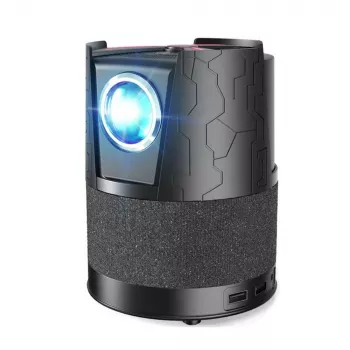
- 4K Mini Portable Projector with Android, WiFi, Auto Focus & Full HD 1080P — a compact all-in-one option aimed at quick setup, smart playback, and sharp Full HD viewing.
- The Solo Shopper’s Guide to Smart Grocery Budgeting | Digital Download for How to Budget Groceries for 1 | Meal Planning Guide for One — a simple digital guide if you’re also building a more intentional at-home routine.
- Less Is Luxe: The Minimal Fashion Guide – Ultimate eBook for Timeless, Effortless Style — a minimalist lifestyle read that pairs well with streamlined, clutter-free entertainment setups.
FAQ
Does an Android projector replace a streaming stick?
Often yes for basic streaming, but some apps may require a certified device or may limit playback quality. Keeping an HDMI streaming stick available is a reliable fallback for broader app compatibility and consistent performance.
How does auto focus help in everyday use?
Auto focus reduces manual adjustments when the projector is moved or the projection distance changes, keeping text and subtitles crisp. Manual control can still be helpful for tricky angles or imperfect surfaces.
Will Full HD 1080P look good on a large wall?
It can look sharp at typical viewing distances, especially for movies and streaming. Extremely large images or very close seating can reveal softness, so balancing image size with room distance and brightness usually produces the best results.











Leave a comment
You must be logged in to post a comment.