Amazon AI Image Generator: Step-by-Step for Ads
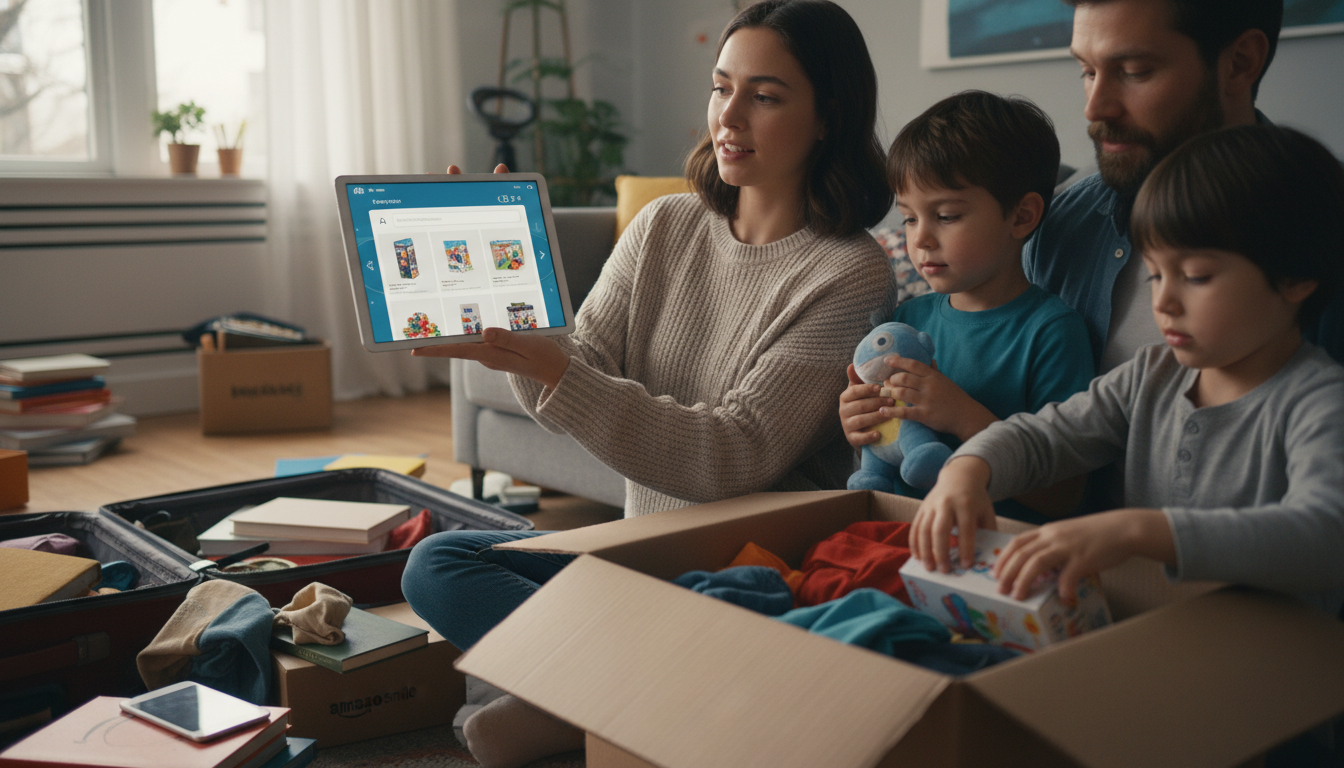
How to use Amazon AI image generator?
Amazon’s AI image generator (available in select Amazon ad and listing tools) helps create lifestyle-style visuals quickly so you can test different creative directions without scheduling a full photo shoot. The exact buttons may vary by account and marketplace, but the workflow is typically the same: choose where the image will be used, describe what you want, generate options, then refine and export.
1) Open the tool from your Amazon workflow
Start inside the Amazon interface where you manage product content or ads. Look for an option such as “Generate image,” “AI image,” or “Create with AI” when editing creative assets. If you don’t see it, it may not be enabled for your account yet or may only appear for certain ad formats.
2) Pick the use case and product context
Select whether the image is intended for an ad, a brand asset, or a listing module. Then choose the product (ASIN) or upload a source image if the tool supports it. Providing the correct product context helps the generator align the scene and proportions with what you sell.
3) Describe the scene with specific, product-safe details
Write a clear description of the setting, angle, background, and mood. Keep it grounded: name the environment (kitchen counter, gym locker room), lighting (soft daylight, studio), and composition (front-facing, close-up, wide shot). Avoid adding claims, logos you don’t own, or restricted content that could trigger rejection.
4) Generate variations, then iterate with small changes
Run multiple generations and save the strongest candidates. When refining, adjust one variable at a time (background, camera distance, color palette) so you can track what improves performance and what introduces artifacts.
5) Review for quality, policy, and brand consistency
Zoom in and check for warped edges, incorrect textures, or odd shadows. Confirm the image matches Amazon ad policies and your brand presentation. If something looks off, regenerate or simplify the scene description.
6) Export and organize for repeatable testing
Download the final options at the recommended size for your placement and name files consistently. For a repeatable selection workflow that reduces guesswork, follow the structured approach here: https://luxifyo.com/blog/guide-ai-ad-image-selection-repeatable-workflow/.
FAQ
What makes an AI-generated Amazon ad image more likely to get approved?
Keep visuals accurate to the product, avoid misleading claims or prohibited elements, and use clean compositions without confusing overlays. When in doubt, choose simpler scenes and verify the placement’s creative requirements before uploading.











Leave a comment
You must be logged in to post a comment.